Design Online Course Printables Using Canva
📖 Table of Contents
- Getting Started with Canva for Online Course Printables
- Choosing the Right Template for Your Course
- Customizing Your Printable with Canva’s Tools
- Adding Graphics and Visuals to Your Printable
- Exporting and Sharing Your Printable
- Creating a Consistent Brand Look Across All Printables
- Using Canva for Interactive and Digital Course Materials
- Make It Your Way
- Frequently Asked Questions
When I first launched my online course on digital marketing, I struggled to create engaging printables that matched the visual tone of my content. I tried using generic templates and basic design tools, but nothing felt cohesive or professional. That was until I discovered Canva — a game-changer for anyone looking to design online course printables using Canva. The process was intuitive, and for the first time, my course materials had a unified look that made my students feel like they were part of a well-designed learning experience.
Designing printables for an online course can feel overwhelming, especially if you're not a designer. I remember spending hours trying to align fonts, pick the right colors, and figure out how to make my worksheets and handouts look visually appealing. Canva simplified the entire process for me. With its library of templates, drag-and-drop tools, and customizable options, I was able to create printables that were both professional and easy to use. This is why I'm excited to walk you through how to design online course printables using Canva — whether you're a seasoned educator or just starting out in the online course world.[1]
What I love most about Canva is how it allows you to maintain a consistent brand identity across all your course materials. Before I used Canva, my printables looked like they were made by different people, which confused my learners and made my course feel disorganized. With Canva, I can set up a brand kit with fonts, colors, and images that match my course's theme, and every printable I create automatically follows those guidelines. It's a small detail, but it makes a huge difference in how your students perceive the quality of your content.
Why You'll Love This Method
- No design experience required — Canva makes it easy for anyone to create professional-looking printables.
- Consistent branding across all your course materials ensures a polished and unified learning experience.
- Access to a vast library of templates, fonts, and images that save you time and effort.
- Ability to export in multiple formats for use in print, digital, or interactive learning environments.
Getting Started with Canva for Online Course Printables
As of August 2026, to get started, visit Canva's website and create an account. You can use the free version, which is more than enough for most course creators. Once you're logged in, you'll see a wide variety of templates that you can use as a starting point. Whether you're making a worksheet, a lesson plan, or a printable handout, there's a template that fits your needs.
The best part about using Canva is that it's user-friendly. You don't need any design experience to create beautiful printables. Simply choose a template, customize it with your course content, and export it in the format you need. For example, I often use the A4 print template for my worksheets and the PNG format for digital handouts that my students can access in their learning portal.
One thing I recommend doing when you're just starting out is to set up a brand kit. This includes your primary font, color scheme, and any logos or icons that represent your course. Having a brand kit ensures that all your printables look consistent and professional, which is essential for building a strong learning experience.
Before you start designing, set up a brand kit in Canva. This will help you maintain a consistent look across all your course materials.
Choosing the Right Template for Your Course
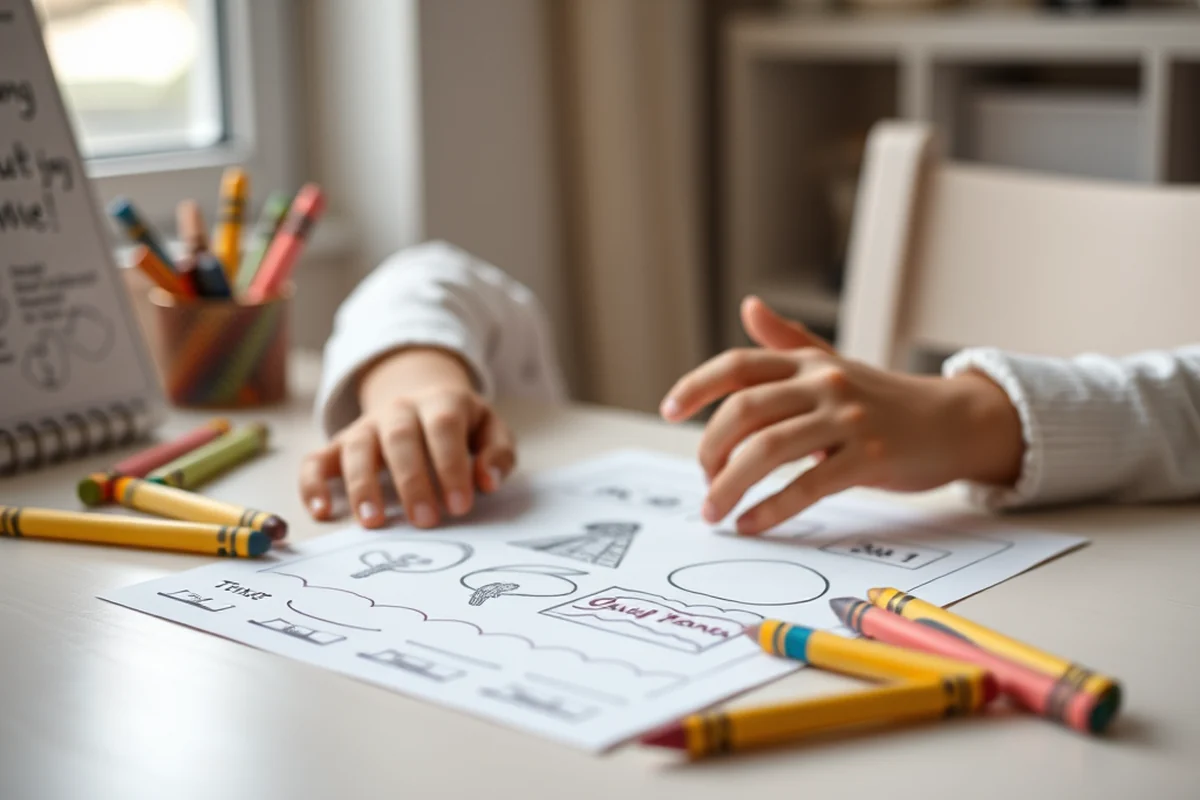
Canva offers thousands of free templates, but not all of them are suitable for online course printables. When choosing a template, consider the purpose of the printable. For example, if you're creating a worksheet, you'll want a template that includes text boxes, lines for answers, and space for diagrams or illustrations. On the other hand, if you're creating a certificate or a badge, you'll need a template that has a more formal design with borders and decorative elements.
I've found that using a minimalistic template works best for most course materials. These templates have clean lines, ample white space, and are easy to customize with your content. They also allow your course materials to remain focused on the information, rather than the design itself.
If you're unsure about which template to use, start with a few different options and see which one feels the most natural for your course. Once you've found the right template, you can save it as a favorite and reuse it for future printables.
Choose templates that match the purpose of your printable to ensure a seamless learning experience.
Related: E printables course review
Related: E gmat course review reddit
Related: What Is Online Course Business
Related: Online Course Costume Design
Related: American college of education
Related: Asrt Continuing Education
Related: What Is The Best Online Book Club
Related: What Is The Best Online Guitar Lessons
Related: Cybersecurity Certification Online
Customizing Your Printable with Canva’s Tools
Once you've selected a template, the real fun begins. Canva's drag-and-drop interface makes it easy to move elements around, resize text, and add your own content. I often use the text tool to replace the placeholder text with my course content, and the image tool to add my own illustrations or stock photos.
One of the best features of Canva is its ability to auto-size text. When I type in a paragraph and hit enter, Canva automatically resizes the text to fit the space, which saves me a lot of time. I also use the alignment tools to make sure all my text and images are properly aligned, which is crucial for creating a professional look.
Another tool I use frequently is the color picker. If I want to match a specific color from my brand kit, I can easily find it in the color picker and apply it to my text or background. This helps maintain consistency across all my course materials.
Canva's auto-size text feature saves time by adjusting text to fit the space you've selected, eliminating the need for manual resizing.
“When I first launched my online course on digital marketing, I struggled to create engaging printables that matched the visual tone of my content.”— Online Course Reviews editors
Adding Graphics and Visuals to Your Printable
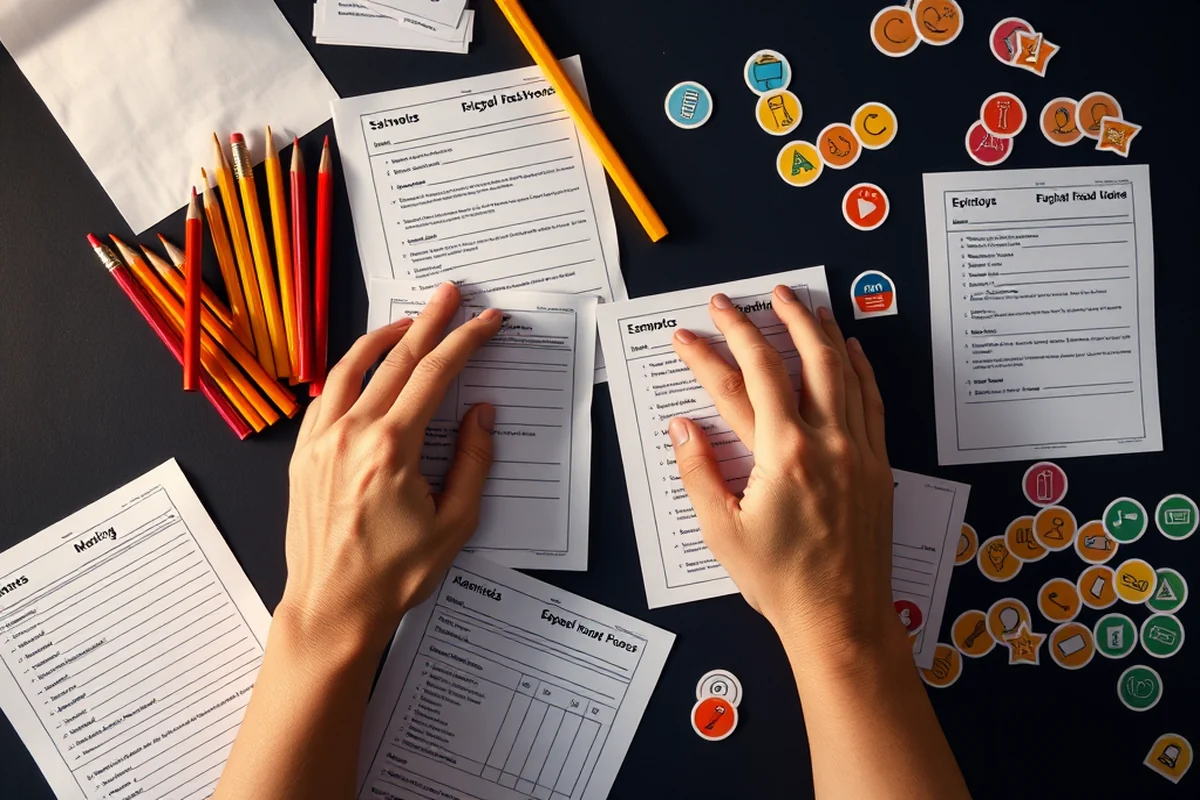
Graphics and visuals can make your printable more engaging and help reinforce the content. Canva has an extensive library of icons, illustrations, and images that you can use to enhance your printable. I often use icons to highlight key points or create visual hierarchies within the content.
When adding visuals, it's important to choose images that are relevant to the content. For example, if you're teaching a course on marketing, you might use icons related to social media, branding, or customer engagement. These visuals not only make your printable more visually appealing but also help your students understand the material better.
I also like to use Canva's image search feature to find stock photos that match the tone of my course. If I can't find the right image in the library, I can search for it directly within Canva and add it to my printable. This ensures that all my visuals are high quality and consistent with the overall design of my course materials.
Exporting and Sharing Your Printable
After you've customized your printable and added all the necessary content, the next step is to export it. Canva allows you to export your printable in a variety of formats, including PDF, PNG, JPEG, and more. I often use PDF for printables that will be printed on paper, and PNG for digital handouts that my students can access in their learning portal.
When exporting your printable, make sure to select the correct size and resolution. For example, if you're creating a printable that will be printed on a standard sheet of paper, you should export it in A4 or letter size. For digital handouts, you can use the standard size and export it in high resolution to ensure it looks good on any device.
Once your printable is exported, you can share it with your students directly from Canva or download it and upload it to your course platform. This makes it easy to distribute your course materials and ensure that your students have access to all the resources they need.
Creating a Consistent Brand Look Across All Printables
Consistency is key with creating printables for your online course. A consistent brand look helps your students recognize your course materials and creates a sense of professionalism and trust. One of the best ways to achieve this is by using a brand kit in Canva.
A brand kit includes your primary font, color scheme, and any logos or icons that represent your course. Using these elements consistently across all your printables ensures that they look like they belong to the same course and help your students feel more connected to your content.
I've found that using a brand kit not only improves the visual quality of my printables but also makes the design process faster and more efficient. Once I've set up my brand kit, I can apply the same font, colors, and icons to all my printables with just a few clicks.
A consistent brand look across all your printables helps build trust and professionalism in your online course.
Using Canva for Interactive and Digital Course Materials
In addition to creating printable handouts and worksheets, Canva can also be used to create interactive and digital course materials. For example, I've used Canva to create digital flashcards that students can use on their phones or tablets. These flashcards are interactive and include features like animations and sound effects that make learning more engaging.
Another way I've used Canva for digital course materials is by creating interactive quizzes and assessments. These quizzes are embedded directly into my course platform and allow students to test their knowledge in a fun and interactive way. Using Canva, I can design the questions and answers, add images, and even include animations to make the quiz more visually appealing.
One of the best things about using Canva for digital course materials is that it's easy to share them with your students. Once you've created your interactive content, you can export it as a PDF or a downloadable file and share it with your students directly from your course platform. This makes it easy for your students to access the materials and start learning right away.
🎨 Younger Learners (Ages 3-6)
Use bright colors, simple shapes, and playful fonts to create engaging printables that are easy for young children to understand and enjoy.
📚 Older Students (Ages 7-12)
Design printables with clear text, organized layouts, and visual aids that support learning and keep students focused on the content.
⏱️ No-Prep Version
Use Canva's pre-designed templates to create printables quickly without any customization or design work.
👥 Group Learning Version
Create interactive printables that encourage collaboration and discussion among students, such as group worksheets or peer review sheets.
🚀 Extension Activity
Design printables that challenge advanced learners with additional tasks, puzzles, or projects that extend the learning experience beyond the core course content.
| The mistake | Why it happens | The fix |
|---|---|---|
| Using too many fonts and colors in a single printable. | This can make your printable look cluttered and unprofessional. | Stick to a limited number of fonts and colors that match your brand kit to ensure a clean and cohesive design. |
| Ignoring the purpose of the printable when choosing a template. | This can lead to a mismatch between the content and the design, making the printable less effective for its intended use. | Choose a template that aligns with the purpose of the printable, such as using a worksheet template for a worksheet and a certificate template for a certificate. |
| Not testing the printable on different devices or screen sizes. | This can result in a printable that looks good on your screen but is difficult to read or use on a mobile device or tablet. | Test your printable on different devices and screen sizes to ensure it looks good and functions well in all environments. |
| Overloading the printable with too much text or information. | This can make the printable difficult to read and may overwhelm the learner with too much information at once. | Keep the content concise and use visual elements to break up the text and make it easier to read. |
Design Online Course Printables Using Canva
Common Questions
Can I use Canva for free to create online course printables?
What file formats can I export my printables in?
How do I maintain a consistent brand look across all my printables?
Can I create interactive course materials with Canva?
References
- Structuring knowledge-building in online design education - PMC (pmc.ncbi.nlm.nih.gov)
Cite this guide
Online Course Reviews (2026). Design Online Course Printables Using Canva. https://evaluatemind.com/design-online-course-printables-using-canva/
Feel free to cite or share this guide.